We Compressed 21 Real PDFs 84 Ways: Here Is What Actually Shrinks
Every PDF tool promises to shrink your file. Almost none of them tell you by how much, on what kind of document, or how often the answer is "barely at all". So we measured it.
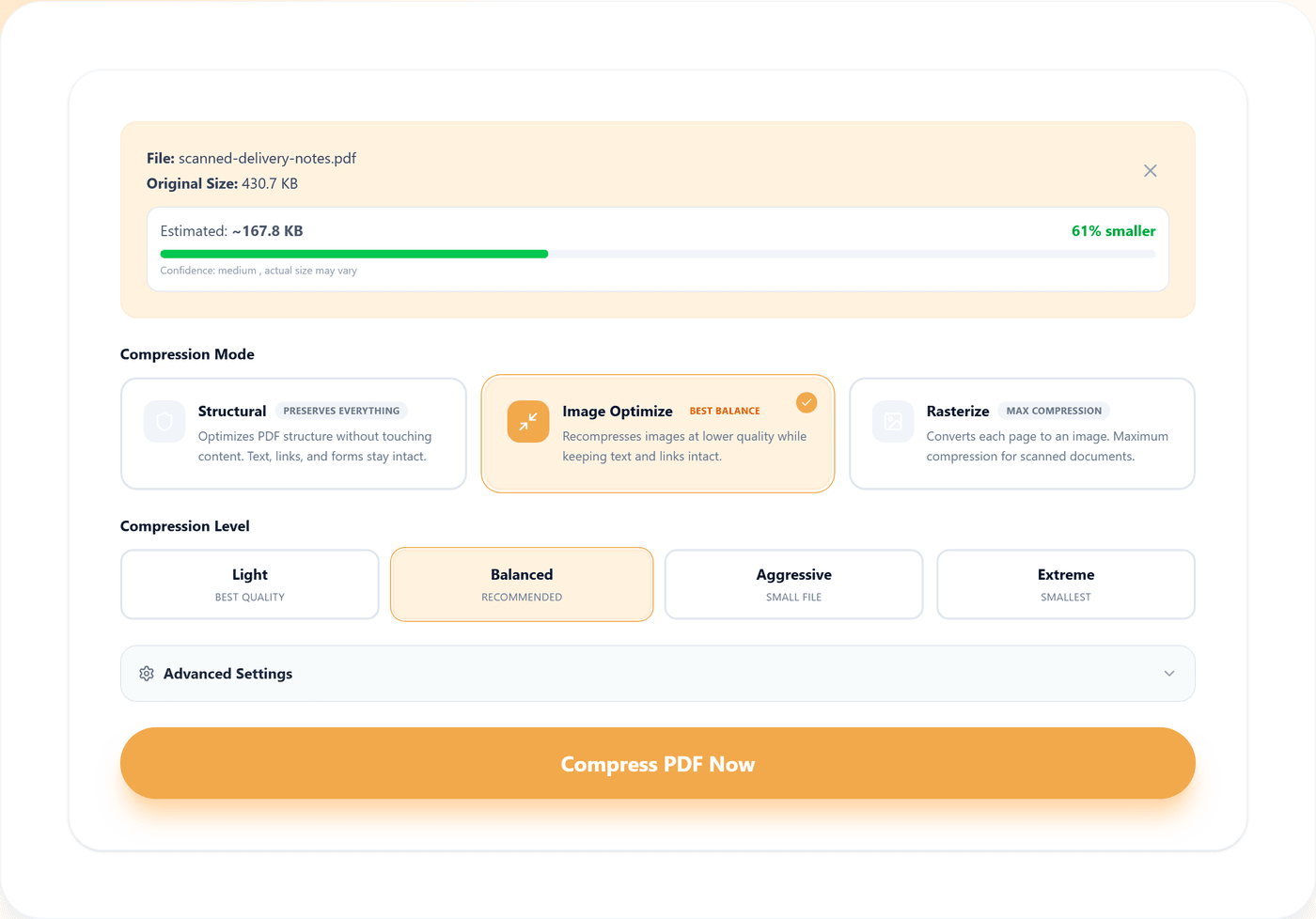
We took 21 PDFs — 20 of them real documents published by US federal agencies and courts, plus one image-only scan — and ran every one of them through four compression settings, 84 runs in total. Each run drove the actual Compress PDF tool in a real browser and weighed the file it produced. Nothing was estimated.
The short version: the median best-case saving was 14.4%, and 43% of all runs made the file larger.
The Headline Numbers
- Median best-case saving: 14.4%. That is the middle document, using whichever of the four settings did best for it.
- 36 of 84 runs (43%) produced a bigger file than they started with. Compression is not a one-way ratchet.
- 7 of 21 documents could not be shrunk by even 5% by any setting we tried.
- 6 of 21 could be shrunk by more than 30%, and those six have something specific in common: they are dominated by images.
- The single best result, 91.5%, was the scanned document — the one category where the marketing numbers are honest.
What Kind of PDF You Have Decides Almost Everything
Sorting the corpus by document type produces a much cleaner picture than any average across all of them. Each figure below is the median of the best result achieved for each document in that group:
| Document type | n | Median best saving | Setting that usually won |
|---|---|---|---|
| Scanned / image-only | 1 | 91.5% | Image optimise, extreme |
| Slide decks and posters | 2 | 40.0% | Image optimise, extreme |
| Mixed text and figures | 4 | 32.4% | Image optimise, extreme |
| Image-heavy reports | 4 | 14.4% | Image optimise, extreme |
| Text-heavy publications | 4 | 7.0% | Structural |
| Interactive forms | 6 | 2.1% | Structural |
The spread between the top and bottom rows is more than fortyfold, and it has a single physical cause. Text in a born-digital PDF is not stored as pixels; it is stored as instructions to draw specific glyphs at specific coordinates, plus the font needed to draw them. That representation is already extremely compact, and there is essentially nothing left to squeeze out of it. A scanned page, by contrast, is a photograph of text — hundreds of thousands of pixels describing something a few hundred bytes of instructions could have described — and photographs compress enormously.
So the practical question is never "how much can a PDF be compressed". It is "how much of this PDF is pictures".
Compression Frequently Makes Files Bigger
This was the most surprising result, and it is worth stating plainly: 36 of our 84 runs produced a file larger than the input. Broken down by setting:
| Setting | Median | Best | Worst | Made it bigger |
|---|---|---|---|---|
| Structural | 0.3% | 50.4% | -9.1% | 6 of 21 |
| Image optimise, balanced | 12.2% | 66.9% | -8.7% | 5 of 21 |
| Image optimise, extreme | 14.4% | 91.5% | -7.7% | 5 of 21 |
| Rasterise | -481.7% | 60.3% | -2930.0% | 20 of 21 |
Three separate mechanisms are at work here, and each one is worth recognising in your own files:
- Re-encoding an already-efficient image costs bytes. If a document's images are already well compressed, decoding and re-encoding them at a nominally lower quality can produce a larger result than the original. This is why image optimisation still went backwards on five documents.
- Rewriting the file structure is not free. Structural optimisation rebuilds the document's object tables. On a file that was already written efficiently, the rebuild can be slightly heavier than what it replaced — hence the -9.1% worst case on a 142-page IRS publication.
- Turning text into pictures is catastrophic. Rasterising replaces each page with an image of itself. On a born-digital document that swaps a few kilobytes of drawing instructions for a full-page bitmap, and the results are extraordinary: a 6-page IRS form went from 0.13MB to 2.54MB, and a 216-page publication grew by 2930%.
A note on our own rasterise mode
Our compress tool labels rasterising as "Max Compression". On this corpus that label is misleading, and we would rather say so than quietly leave it out of the write-up. Rasterising made 20 of 21 documents bigger.
In fairness to the setting, the public corpus contains no true scans, which is the input it exists for. So we tested that case separately on an image-only scanned document — and it did work there, saving 60.3%. But image optimisation saved 91.5% on the same file. Across everything we measured, rasterising was never the best available choice. Use it when you specifically want to flatten a page so its text can no longer be selected, not when you want a smaller file.
The Two Outliers Worth Understanding
Two documents saved around 50% from structural optimisation alone, without a single image being touched — which cuts against everything above. They are instructive:
- A one-page US Courts form (AO 120) went from 0.05MB to half that. A very small file dominated by a handful of embedded fonts and form-field definitions, where cleaning up the object structure is proportionally huge.
- An FDA guidance document saved 49.7%. All three non-rasterising settings returned almost exactly the same figure, which is the signature of a file carrying substantial structural overhead — redundant objects, an inefficient cross-reference table, or accumulated incremental saves — rather than heavy images.
The lesson is that a large PDF is not automatically an image problem. If a text-only document is much bigger than its page count suggests, something structural is going on, and the cheapest setting is the one that will fix it.
What to Actually Do With Your File
- Work out what you have. Try to select text on a few pages. If you cannot, it is a scan, and you can expect a large saving. If you can, expect a small one.
- Divide the file size by the page count. Much under 100KB per page and there is little to win. Well over 500KB per page and the pages are carrying images.
- For a colour scan, convert to grayscale first. Discarding colour is often a bigger single win than compression, and it costs nothing on a document of black text.
- Start with structural, then escalate. It cannot degrade the page. Only move to image optimisation if the result is not small enough, and check the smallest text on the busiest page before accepting an extreme setting.
- If it is text and it will not shrink, stop compressing. Remove pages you do not need to send, or split the document. Deleting a quarter of the pages reliably removes about a quarter of the file, which no setting in our test managed on a text document.
- Compress before running OCR, not after. Recognition reads the page image, so degrading it first is the wrong order.
- Always check the output size. Given that 43% of our runs went the wrong way, this is not a formality.
Method
We would rather you were able to check this than take our word for it.
- Corpus: 21 documents. Twenty are real PDFs published by the IRS, NIST, GAO, USGS, NOAA, the FDA, the Administrative Office of the US Courts and the Department of Labor, chosen to span interactive forms, long text publications, image-heavy reports, mixed technical documents and slide decks. They range from 0.05MB to 42.24MB, and from 1 to 567 pages. The twenty-first is a generated image-only scan, included because the public corpus contained no true scan.
- Procedure: each document was run through four settings — structural, image optimise at balanced, image optimise at extreme, and rasterise at balanced — for 84 runs. Every run was performed by a script driving the real tool in a real Chromium browser: upload the file, select the mode, click compress, and weigh the resulting download. No part of the pipeline was simulated or estimated.
- Measurement: saving is simply 1 minus output bytes over input bytes. Negative figures mean the output was larger. Page counts were read with pdf-lib. All 84 runs completed; none failed or timed out.
- Reproducibility: the corpus list, the runner and the analysis script live in the repository under scripts/benchmark, and the raw per-run results are written to a JSON file that the figures in this article are generated from. Nothing here was typed in by hand.
- Limitations: this measures our own tool, not a comparison against other services. The corpus is US federal publishing, which skews towards well-produced documents; files exported from consumer scanners and office software are often less efficient and may compress better. The scan category has a sample size of one. And the numbers describe these 21 documents, not yours.
Frequently Asked Questions
How much can you actually compress a PDF?
Across 21 real published documents, the median best-case saving was 14.4%. Six of the 21 could be reduced by more than 30%, and seven could not be reduced by even 5% by any setting. The claim that a PDF can routinely be shrunk by 80-90% only holds for one category: scanned or image-only documents, where we measured 91.5%.
Why is my PDF not getting smaller when I compress it?
Almost certainly because it is a born-digital text document. Text is stored as drawing instructions, which are already tiny and have nothing left to squeeze. In our test, government forms had a median best saving of 2.1% and text-heavy publications 7.0%. If your file is large and will not compress, the size is coming from something else, most often embedded fonts or a small number of image-heavy pages.
Can compressing a PDF make it bigger?
Yes, and it happens more often than people expect. 36 of our 84 runs, 43%, produced a file larger than the original. Re-encoding an image that is already efficiently compressed can cost more bytes than it saves, and converting page content to images inflates a text document enormously.
Which compression setting should I use?
For scanned and image-heavy documents, image optimisation at its most aggressive setting won in almost every case. For born-digital text and forms, structural optimisation is the only setting that reliably does no harm, and even then the saving is usually small. We did not find a single document where rasterising was the best choice.
What kind of PDF compresses best?
Scans, by a wide margin: 91.5% on our image-only test document. Then slide decks at a median 40.0%, mixed text-and-figure reports at 32.4%, image-heavy reports at 14.4%, text-heavy publications at 7.0%, and interactive forms last at 2.1%.
Does compressing a PDF reduce quality?
Structural optimisation does not touch page content at all, so no. Image optimisation re-encodes embedded images at lower quality, which is a real and permanent loss, though usually invisible on screen at moderate settings. Rasterising replaces the page with a picture of itself, which also destroys selectable text, links and form fields.
Is it better to compress or to remove pages?
If pages can be removed, remove them. Compression on a text document typically returns single-digit percentages, while deleting a section returns exactly its share of the file. Splitting the document is also usually easier than fighting an attachment limit.
How was this test run?
Twenty-one PDFs, twenty of them downloaded from IRS, NIST, GAO, USGS, NOAA, FDA, the US Courts and the Department of Labor, plus one image-only scan. Each was run through four settings in a real browser driving the actual tool, and the resulting download was weighed. See the method section above for the full procedure and its limitations.
Ready to try it yourself?
We ran 21 real published PDFs through four compression settings and measured every result. 43% of runs made the file bigger. Full data, method, and what it means for your file.
Open the tool