How to Save a PowerPoint as a PDF, Notes and Handouts Included
You send someone your deck as a PDF so the fonts do not go missing and they do not need PowerPoint. Then you notice the file included the slides you meant to keep hidden, or left out the notes they wanted, or came out at 60 MB. All three are decided by a few settings in the export dialog that most people click straight past.
The basic export, and the Options button
- On Windows, choose File, Save As (or Save a Copy) and set the file type to PDF. File, Export, Create PDF/XPS Document opens the same dialog.
- Click Options before you save. This is where the useful choices live.
- Set what you need, click OK, then Save.
On a Mac, use File, Export and set File Format to PDF. Recent versions may offer a choice where one option is described as using an online service. For a board deck or anything under NDA, pick the option that does not.
In Options, the ones worth a look are the slide range, Include hidden slides (off by default), and Include comments and ink markup (also off by default). Leave the document structure tags for accessibility ticked so screen readers can follow the slides. Document properties can carry your name and company into the PDF, so untick them or edit them afterwards.
Getting the speaker notes into the PDF
On Windows, open Options and change Publish what from Slides to Notes pages. Each PDF page then shows one slide with its notes underneath.
On a Mac the Export dialog does not offer that. Use File, Print, set Layout to Notes, then open the PDF menu at the bottom left of the print dialog and choose Save as PDF.
Read the notes before you send them. Presenters write things in notes they would never put on a slide: candid pricing, a client's name, a reminder about a difficult stakeholder. A notes PDF publishes all of it.
Several slides per page
For a printed handout, set Publish what to Handouts in the same Options dialog and choose how many slides per page. The layouts read differently:
| Slides per page | Reads like |
|---|---|
| 1 or 2 | Large slides, good when people need to read the detail |
| 3 | Slides on the left with ruled lines on the right, for note-taking |
| 4 or 6 | A grid, the usual choice for a review copy |
| 9 | An overview of the whole deck; the text is too small to read |
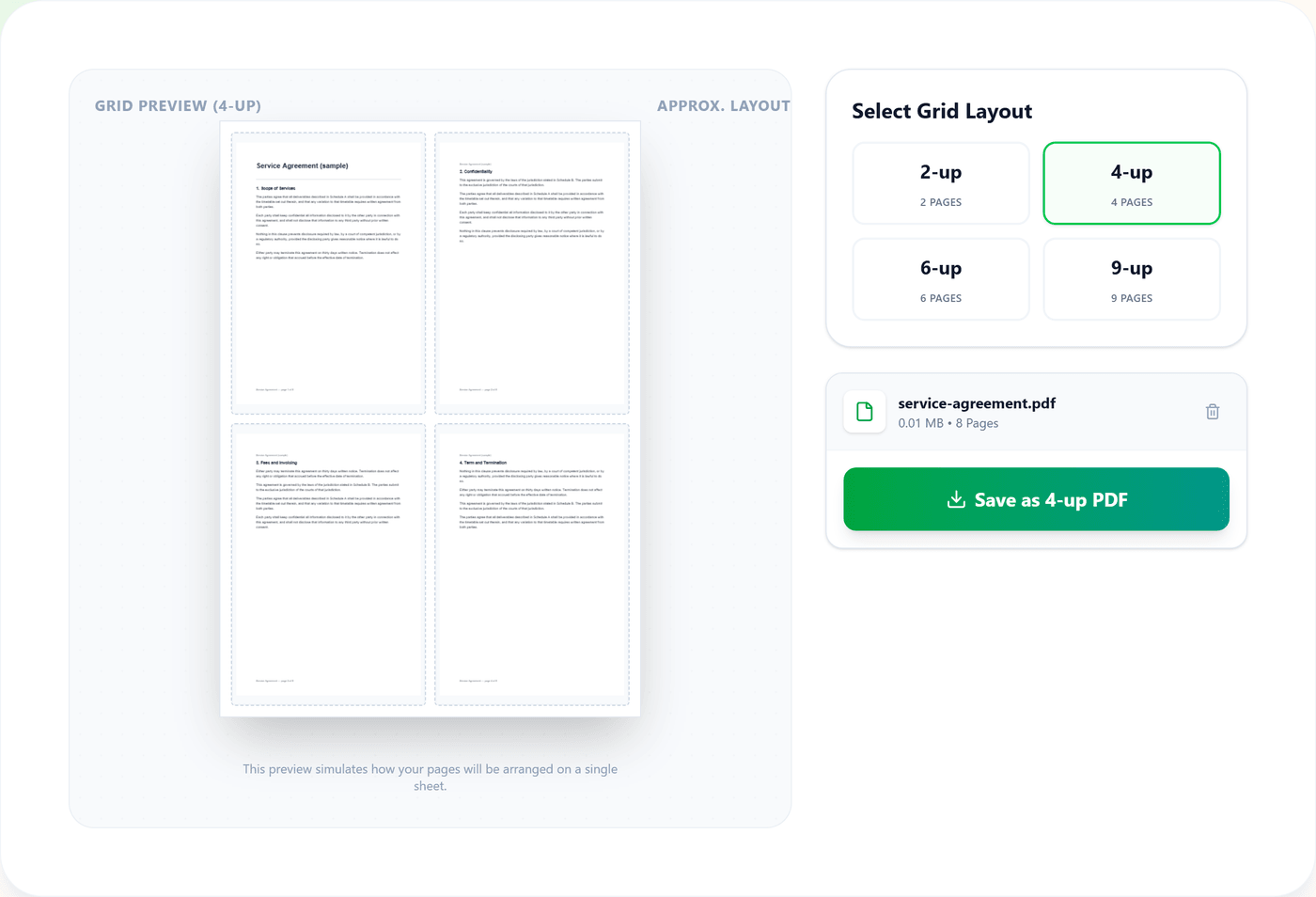
If you already have a one-slide-per-page PDF, or the deck came from Google Slides or Keynote and you want a handout, re-exporting is not necessary. The N-Up PDF tool lays existing pages out 2, 4, 6 or 9 to a sheet on A4 pages with a thin border around each. It does that in your browser and saves the result as a new file, so the original stays as it was.
Google Slides and Keynote
- Google Slides: File, Download, PDF document gives one slide per page. For notes or handouts, use File, Print preview, choose a layout such as 1 slide with notes, and download as PDF.
- Keynote: File, Export To, PDF, then tick Include presenter notes if you want them. Keynote also has an option to print each stage of builds, which gives every animation step its own page.
What a PDF cannot keep
A PDF is a static document. Animations and transitions disappear, and each slide shows in its final, fully built state, so a slide that reveals an answer on click shows the answer at once. Embedded video and audio do not play. Objects designed to appear one after another in the same spot can end up stacked on top of each other, so look at those slides in the finished file.
Fonts, layout and images survive, and links stay clickable when you use Save As or Export instead of printing. A PDF is a good way to send a deck. It is not a substitute for the deck when you need to present.
When the PDF is too large
Decks are built from photos, and PowerPoint often keeps them at camera resolution even when they fill a quarter of a slide. The gentlest fix is before you export: select a picture, choose Picture Format, Compress Pictures, untick Apply only to this picture, and pick a resolution suited to screen viewing.
If you have already exported, Compress PDF shrinks the finished file in your browser, and you keep the full-quality original to go back to. It has three modes. Structural keeps text and links intact, Image Optimize recompresses images, and Rasterize turns pages into images, which can make a text-heavy deck larger, not smaller. Start with Image Optimize.
Questions people ask
Do animations and videos work in the PDF?
No. Each slide appears in its final, fully built state, transitions are dropped and embedded video or audio does not play. Keep the original deck for presenting.
Do hyperlinks still work in the PDF?
Yes when you use Save As or Export, because PowerPoint's own PDF writer keeps links clickable. Printing to a PDF printer usually loses them.
Are hidden slides included?
Not by default. There is an Include hidden slides checkbox in the Options dialog, so leave it unticked if the hidden slides are backup or internal material.
Can I turn the PDF back into an editable PowerPoint?
Not cleanly. Converting each page to an image and placing it on a slide keeps the look but not the editable text, so keep the original .pptx whenever you can.
Ready to try it yourself?
Export a deck as a PDF with the slides only, with speaker notes, or as a handout with several slides per page, and avoid the leaks and bloat that come with it.
Open the tool